Complete Beginner’s Guide to Capcut Pro APK
October 25, 2026 (2 weeks ago)
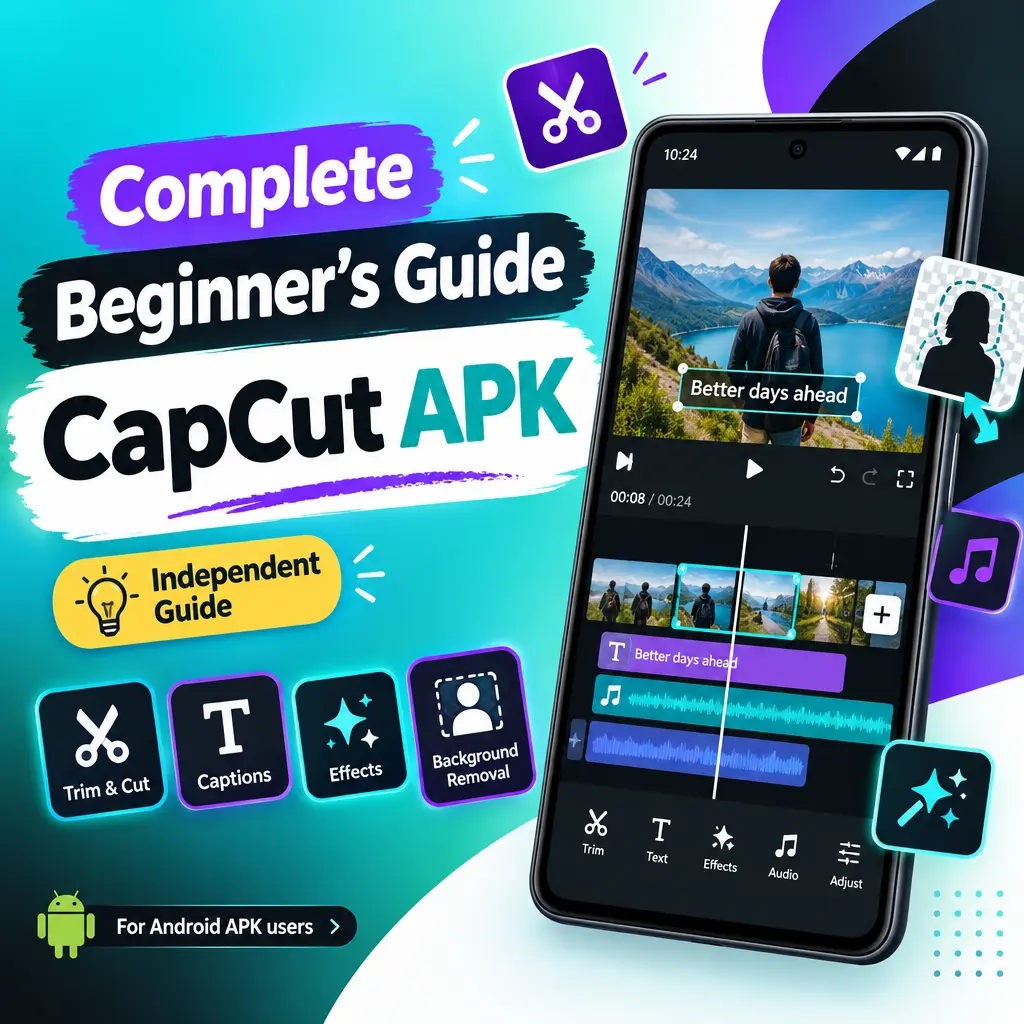
CapCut Pro APK is a term many beginners search for when they want advanced video editing tools on Android. Before you start, it is important to understand what it means. An APK is an Android app package, so it is only for Android devices. This guide is independent and informational. It is not connected with CapCut, ByteDance, or any official publisher. Also, any APK found outside official stores should be treated carefully because its safety, version, release status, and contents cannot be confirmed unless you verify them yourself.
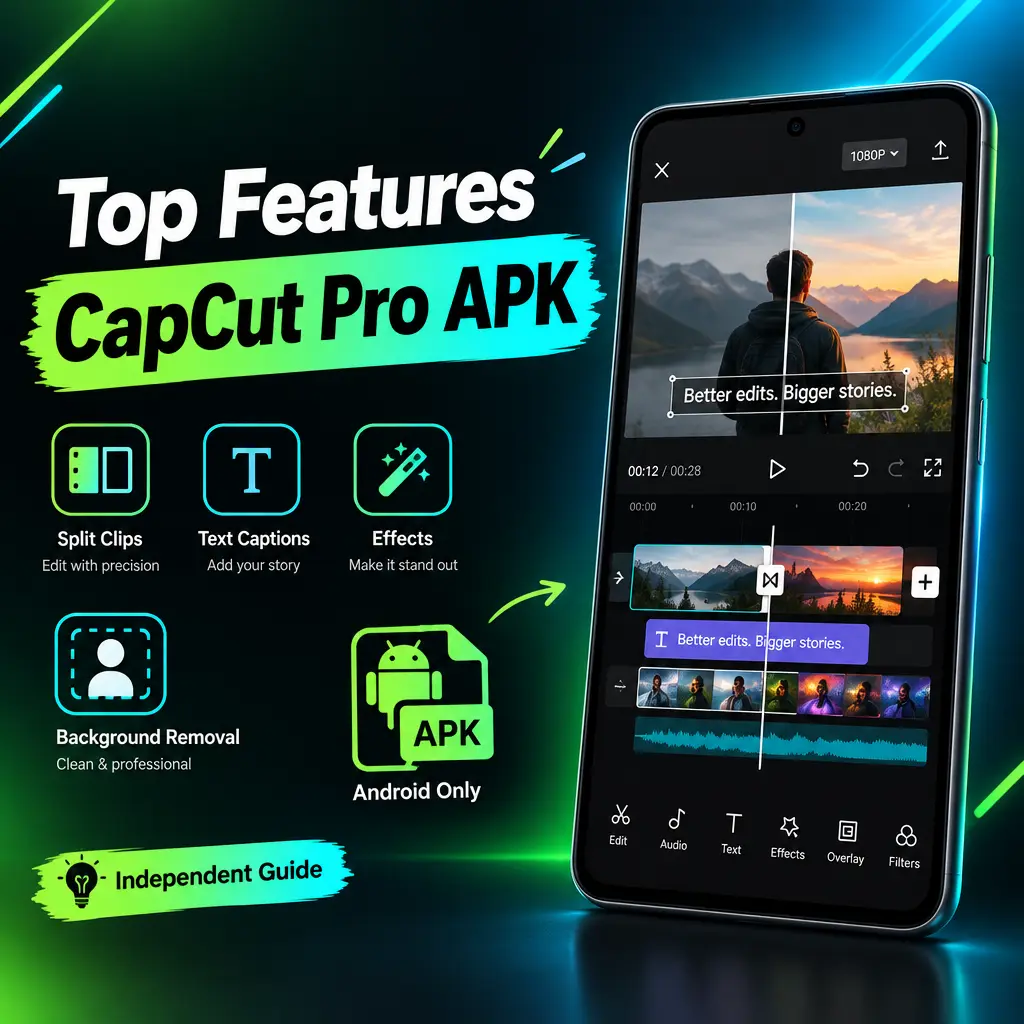
CapCut is popular because it makes video editing easier for beginners. You can trim clips, split videos, add music, use captions, apply effects, create transitions, remove backgrounds in supported cases, and build social media videos without needing professional editing experience. Some features may depend on your device, region, platform, or plan. CapCut Pro features require the right membership in the official app, so you should not expect an APK to unlock paid tools or bypass subscriptions.
What Beginners Should Know First
If you are new to CapCut, think of it as a simple timeline editor. You import videos or photos, arrange them in order, cut unwanted parts, add text or music, apply effects, and export the finished video. The goal is to build a clean video step by step instead of trying every feature at once.
- APK means Android only: You cannot directly install an APK on iPhone, iPad, macOS, or Windows.
- Official desktop versions are separate: Windows and macOS users should use the desktop app or web version where available.
- Emulators are optional: Some PC users run Android apps through emulators, but compatibility and performance can vary.
- Pro features are not automatic: Premium tools require the correct membership through the official app.
- Use caution with external files: Do not assume any APK is safe, current, scanned, ad-free, or verified.
Getting Started Safely
For beginners, the safest way to learn CapCut is to use an official app source whenever possible. If you are checking an APK from another source, do not install it blindly. Read user feedback carefully, check permissions, and understand that no independent blog can guarantee what is inside a file it has not inspected.
- Use a dedicated Android device if you test APK files, especially if you are unsure about the source.
- Check what permissions the app requests before opening it.
- Avoid signing in with important accounts if the source is not trusted.
- Keep your phone system and security settings updated.
- Remove the app if it behaves strangely, asks for unnecessary access, or redirects you unexpectedly.
Creating Your First Project
Once CapCut is installed through your chosen method, open the app and start with a small project. Pick one or two short video clips instead of a long file. This makes learning easier and helps your phone handle the edit more smoothly.
- Tap the option to create a new project.
- Select your video clips or photos from your gallery.
- Add them to the timeline.
- Play the video once without editing so you understand what needs changing.
- Save your project regularly if the app provides that option.
The timeline is where most editing happens. Each clip appears as a block. You can tap a clip to edit it, drag its edges to shorten it, or move it to a new position. If you make a mistake, look for the undo option instead of starting over.
Basic Editing Tools for Beginners
Start with basic edits before using advanced effects. Clean cuts and good timing often matter more than heavy filters. CapCut includes common editing tools that are useful for short videos, tutorials, reels, travel clips, and simple promotional content.
- Trim: Shorten the beginning or end of a clip.
- Split: Cut one clip into two parts so you can delete or rearrange sections.
- Speed: Make a clip faster or slower, depending on available options.
- Crop: Adjust the visible area of your video.
- Text: Add titles, labels, subtitles, or callouts.
- Audio: Add music, sound effects, or voice recordings where supported.
Adding Text and Captions
Text is very useful for beginners because many people watch videos without sound. You can add a title at the start, labels during the video, and a short message at the end. Keep your text short and easy to read.
- Tap the text tool and add your message.
- Choose a clear font and readable size.
- Place the text away from important faces or objects.
- Adjust the timing so the text appears long enough to read.
- Use consistent colors throughout the video.
CapCut also offers caption-related features on supported platforms and plans. Availability can vary, so check inside the app to see what is offered on your device. If automatic captions are not available, you can still add subtitles manually.
Using Effects and Transitions Without Overdoing It
Effects and transitions can make a video more stylish, but too many can make it look messy. A beginner mistake is adding a different transition between every clip. Instead, choose one or two simple styles and use them only where they help the story.
- Use transitions when moving between different scenes.
- Keep fast effects for energetic videos, such as workouts or travel clips.
- Use softer effects for tutorials, vlogs, or product videos.
- Preview every effect before exporting.
- Remove anything that distracts from the main subject.
Working With Layers and Multitrack Editing
Multitrack editing means you can place more than one layer in your project. For example, you can have your main video, a text layer, a music track, and an overlay clip. This is useful for reaction videos, tutorials, picture-in-picture edits, and social media content.
When using multiple layers, keep your timeline organized. Rename items if the app allows it, keep audio balanced, and avoid placing too many moving elements on screen at the same time. Simple edits are usually easier to watch.
Background Removal and Creative Tools
CapCut includes creative tools such as background removal in supported cases. This can help you place a person or object over a different scene. Results may depend on the clip quality, lighting, device, platform, and available plan. For best results, record your subject in good light with a clear contrast between the person and the background.
- Use a plain background when recording.
- Avoid shaky footage if you plan to remove the background.
- Check the edges of hair, hands, and clothing after applying the tool.
- Use a simple replacement background so the subject stays clear.
Exporting Your Video
When your edit is finished, preview it from start to end. Look for spelling errors, awkward cuts, audio that is too loud, and text that disappears too quickly. Export options may vary by device, platform, project settings, and app plan. Do not assume every device supports every resolution or frame rate.
- Review the full video before exporting.
- Choose export settings that match your platform and device capability.
- Save a copy to your gallery if available.
- Watch the exported file before posting it online.
Watermark behavior can depend on the official app version, export settings, templates, and membership status. If you need specific export rights or premium features, use the official CapCut app and the correct membership option.
Beginner Editing Tips
- Keep your first videos short, around 15 to 60 seconds.
- Cut out pauses, mistakes, and repeated parts.
- Use music that matches the mood of the video.
- Keep text large enough for mobile viewers.
- Do not rely on effects to fix weak footage.
- Save original clips before editing.
- Practice with sample projects before editing important videos.
CapCut can be a friendly editing tool for beginners, especially if you learn the basics first. Focus on trimming, splitting, text, audio, transitions, and clean exports before exploring advanced tools. If you are considering any CapCut Pro APK, remember that APK files are Android-only and external files should be handled with care. For premium features, subscriptions, and the most reliable experience, use the official CapCut app and follow the options available in your region and on your device.
Recommended For You